Apps I Use for Organizing My Life
Most of my apps and the others I recommend can be used on your phone and/or computer.
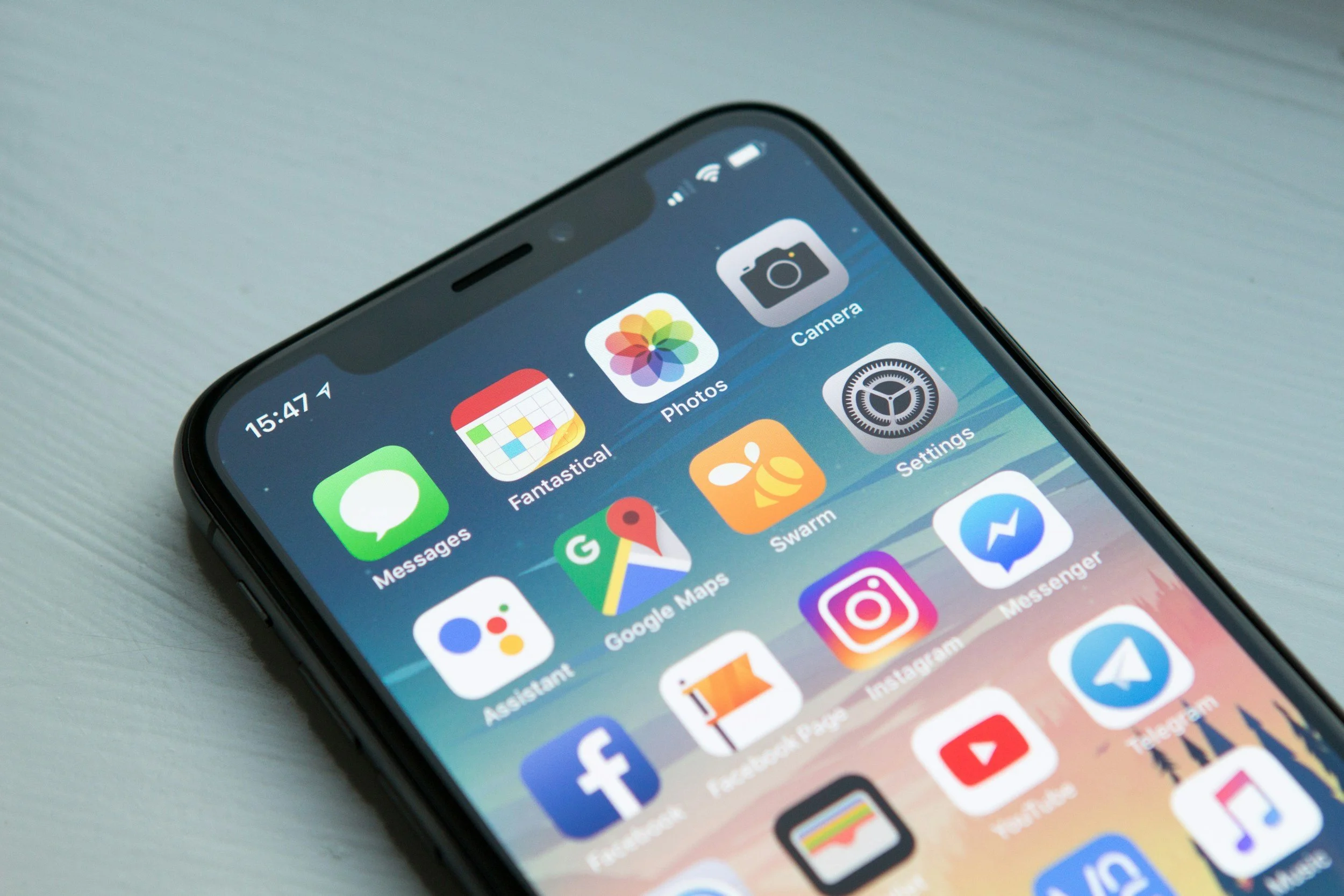
Below are some of the apps that I use on my phone and/or my computer to organize my life. I find that digital tools make it easier to manage things, make sharing easy, can be accessed from anywhere on your phone, have automatic features that save you time (like recurring reminders or events), and are always up to date. One of my favorite benefits these days are hands-free options, like asking Siri to send a text, create a note, or even locate my mom.
The apps I use might not be the best for you though, so check out the alternatives I list. When choosing which app is right for you, consider what you already use in your daily life. The app from the same company may be the best option. For instance, if you use Gmail, the way to go may be to use Google Drive and Google Calendar. Companies make their products so they work well together and often have automations you can create.
I know, I know. I am using apps from a variety of places. That’s fine too. I like what I like. Use what is easiest for you and your life. And if one of the ones I recommend doesn’t fit, check out “best of” lists on PCMag or CNET.
Calendar
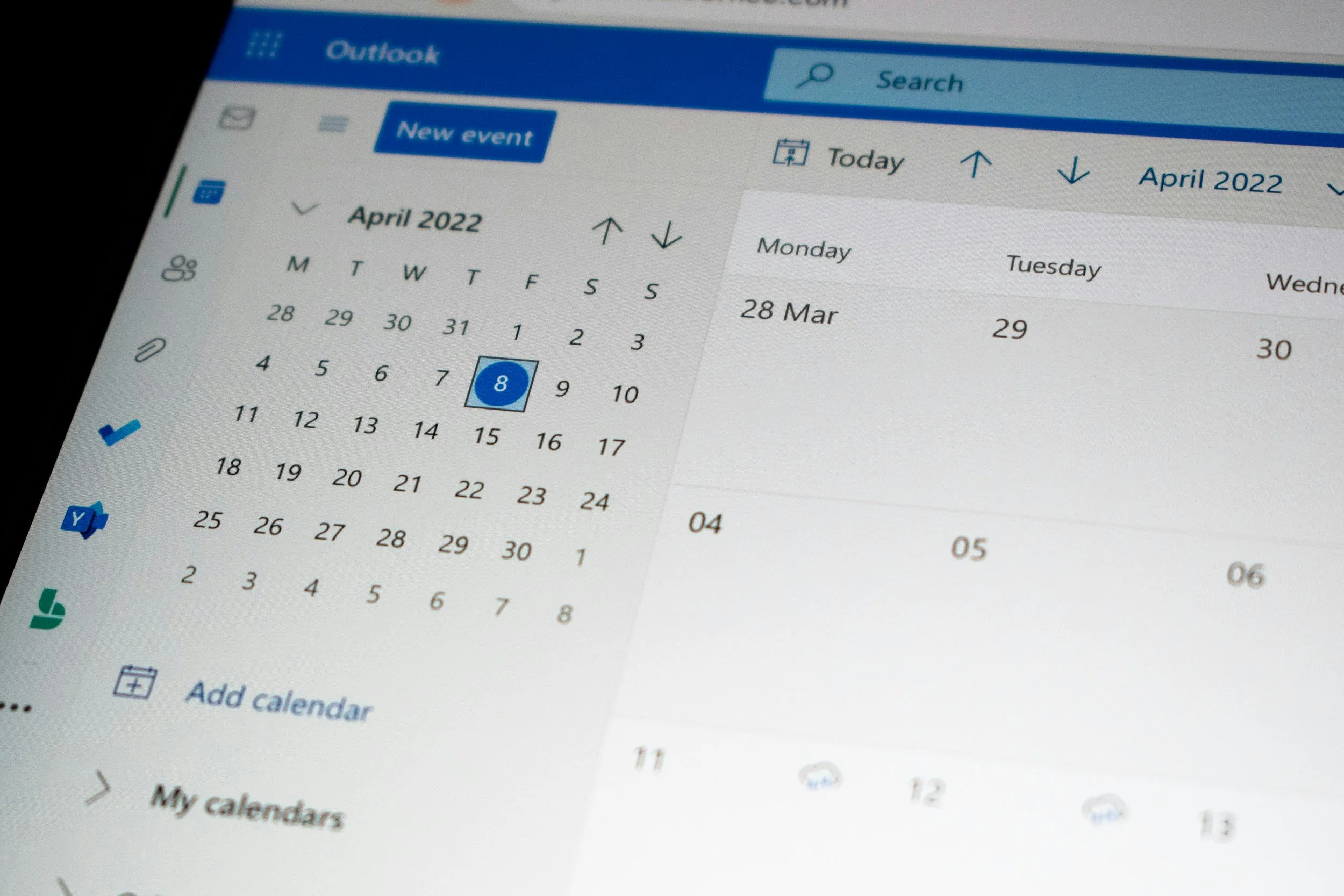
Google Calendar
I love Google Calendar. I use it for both my personal and professional calendars. In my previous career, I even managed a complicated multi-channel, multi-topic marketing calendar with Google Calendar. It can handle almost anything. My favorite features are color coding, recurring events, and duplicating an event.
Duplicating an event makes it super easy to create my next doctor’s appointment as I’m talking to the scheduler so I don’t have to worry about inputting it later. And it’ll already include all the details, including the address that you can just click on to pull up GPS directions, which is also one of my favorite features. I’m never fumbling at the last minute looking for where I need to go.
It’s easy to use, but here’s a little help with a Google Calendar tutorial for beginners.
Others to check out
To Do List
a.k.a. Tasks, Lists, and Project Management
Asana and Google Tasks
I have been using Asana for a long time. I use it to manage my To Do List, but I also use a lot of its features all the way up to project management. Even with all that I use it for and 3 workspaces (work, personal, food and groceries), it’s still free!
I love being able to put a task in more than one project and drag and drop items as things change. No more having to copy and paste, or old school cross out and move down the list on the paper. It’s accessible on my phone from anywhere, and I can share a workspace or a project with my family or a colleague.
You can use Asana for something as simple as a list. Or get a tiny bit more fancy and do a grocery list with sections for each store. You can easily re-assign which store and drag items in each store section so they are in order of how you go through the store.
Or you can manage multi-person, long-term projects. It’s a great tool for sharing and teams. Check out the Asana tutorials if you’re considering it for it’s more in-depth features.
I use Google Tasks for tasks specific to a date that I especially don’t want to forget. It’s connected to Google Calendar, but you can manage them separately now as well. They can be set up as recurring, just as you would an event. I use it for things like a weekly reminder to water my plants.
Others to check out
Meal Planning and Grocery Shopping
Evernote, Asana, and Klarna
Check out my blog on the 6 Essentials for Easy-to-Follow Meal Planning. I use Asana (see To Do List above) for my grocery list, list of go-to meals, and other lists mentioned. I also have lists of foods for different nutrients I want to ensure I’m getting, like calcium for my bones, and lists of foods to avoid. I keep recipes in Evernote (see Notebook below).
One of my favorite apps is Klarna because it eliminates all those loyalty and membership cards in my wallet. You can scan all types of cards, including your library card. I don’t use the app’s other features, which are focused on shopping, just the wallet where you keep all your scanned cards. And Klarna is free if you’re just using the wallet.
If I’m using an app for the store I’m in, I’ll use the barcode or QR code in the app, which most have nowadays.
Others to check out
Notebook
Evernote
I want to start off by saying that I still take notes on paper. That’s the quickest and easiest for me. But I still use a digital notebook system called Evernote.
How it works is after I take notes I create tasks in Asana for things I need to do and scan the notes into Evernote if there is information I want to keep.
I also create digital notes while on my computer or my phone from the things I find or want to keep track of.
The benefits of a digital notebook system are you can access it from your phone from anywhere, you can categorize and search them, you can easily see a list of your notebooks, and you won’t run out of space in your notebook.
Others to check out
Password Manager
1Password
I love using a password manager. It allows me to create very secure, complicated passwords while only having to remember one password, the one to get into 1Password. Basically it’s one password “to rule them all”, which is why my first password for 1Password was Lord of the Rings related. It saves everything from logins and credit cards to wifi passwords.
I chose 1Password because it has the added security of requiring a long security key when you log in for the first time on a new device. There is a Chrome extension that’s easy to use and an app for your phone so you always have your passwords.
On some of the plans, you can share with family or coworking teams. It allows you to manage what each person has access to, so you don’t have to change all your passwords if you part ways. It keeps things limited to the essential ones you need to share, and they’ll automatically be using any updated passwords so you don’t have to send the new one to everyone.
Others to check out
Scanning
Phone Camera or Asana
To make things simple, I will use an app’s native scanning capability. Like in Evernote or Asana you can scan a document with your phone into the note or task.
If I’m not using an app with a scanner feature, I’ll just take a photo. Once I open my OneDrive app it automatically uploads it to the cloud. Then I can just file it away. If I don’t have time to file it, I’ll create a task in Asana and scan it into the task to file later.
Others to check out
Tailor (for automatically stitching screenshots together)
Files and File Sharing
We’ve come a long way!
Microsoft OneDrive
I use MS OneDrive because it comes with my Microsoft 365. I like that I can access it from an app on my phone and share files and folders with others easily. I also like that it keeps a copy in the cloud.
I have also used Google Drive when working with others. I’m not a fan of how you navigate files, but I love how easy it is to work on a document together with others.